Showing posts with label Tech Tips. Show all posts

Apple Released iOS 6.0.1 Firmware Update Fixing Many Bugs


ios-6-0-1-update
Apple few weeks ago came up with their much more awaited iOS 6.0 update that brought some huge list useful features and improvement's to the iOS-Phere. But still many good things brings some bad signs, there new iOS 6 maps was not a good feature they opted for but still they continued in improving their firmware features and fixing all the bugs, so today they came up with another iOS 6.0.1 update that brings many improvements and bug fixes.

iOS 6.0.1 Update Improvement's and Fixes

  1. Prevents iPhone 5 from installing software's wirelessly over the air.
  2. Fixing bug for horizontal lines appearing on keyboard.
  3. Fixes bug for Camera Flash not getting tuned off.
  4. Improves Wi-Fi reliability when connecting to WPA2 networks.
  5. Resolves issue for mistake cellular networks use.
  6. Fixed passcode bug that allowed passbook access from lock screen.
  7. Fixes Bug affecting exchange meetings.
Now this update is freely available to all the iDevice users, either you can visit your iDevice > Settings > General > Software Update section to get this update that is 45mb in size or you can download the whole big firmware file from below according to your device and than update it using the iTunes software for Windows or Mac.

iOS 6.0.1 Firmware Direct Download Links

  1. iPhone 5, 1 (At&T/Canada)
  2. iPhone 5, 2 (International, aka other carriers)
  3. iPhone 4S
  4. iPhone 4 CDMA
  5. iPhone 4 GSM
  6. iPhone 3GS
  7. iPad 4th Gen
  8. iPad 3 Global
  9. iPad 3 CDMA
  10. iPad 3 Wi-Fi
  11. iPad 2 Wi-Fi
  12. iPad 2 At&T
  13. iPad 2 Verizon
  14. iPod Touch 5th Gen
  15. iPod Touch 4th Gen
So now start your download and update your device to take care of any future bug, hope this post this is entirely helpful in every matter if you find any problem with the links do comment so that I can update links.

How to make single name profile on facebook

As we all know that Facebook is one of the most popular website and now days many people asking that "How to make single name profile on facebook" so I am publicly posting it.

What You Need ?
The First Thing You Need To Change your Browser Proxy with any Indonesian Proxy Server:
IP= 202. 70. 136. 142 [ remove spaces ]
Port= 8080
Like In Firefox The Below Image Showing you How To Change It In Mozilla Firefox:


Change It As Shown Above and then Log in To your Facebook Account Go To Account Settings and Place Your First Name But Don't Place Anything in Last Name and then Input Your Password.

#Done

How to Measure your Android's Charging time


Ever wonder how much time does your phone take to charge ? Want to know it and make some important charging schedules. Well Android phone does have this helpful app which will make you clear about these things and thus help you with your work.


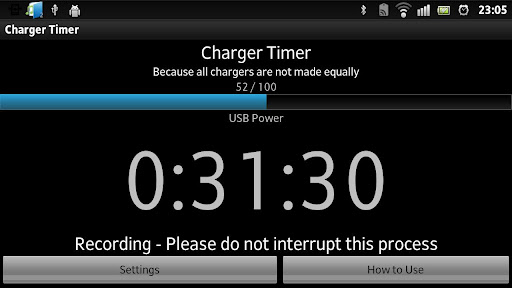
The app's name is Charger Timer. I myself have tried it and found it very helpful. I have rescheduled my charging time so that I would be able to save energy and thus save time too while charging my phone.

What will this App exactly do ?

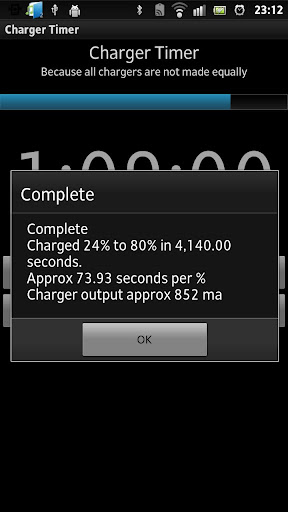
The app will help by telling you the exact time which was needed to charge. Thus making you aware of your battery charging time. Which will will then help you with scheduling your charging time. And if you have two or more chargers then you can try this with all of them and see which one is better, i.e. the one which charges the fastest.

The App gives so much, it must be costly, isn't it?

 Costly ? My friends, its completely for free. With such an app for free you can straight away download without any problem.

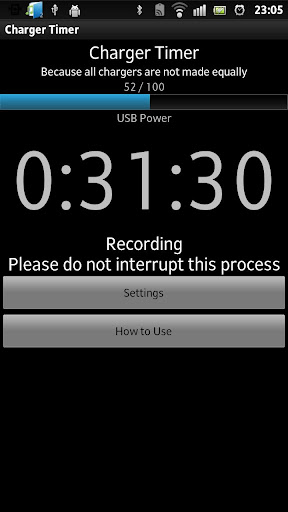
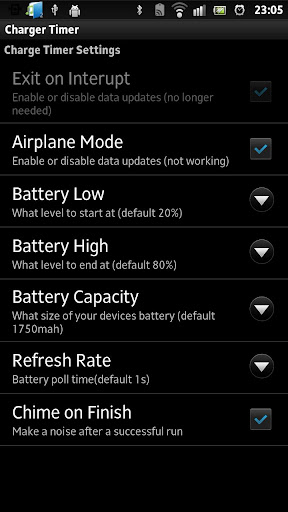
Here are some screenshots of the app which explain in a better way.


Download it here - Charger Timer on Google Play

How to Delete A Skype Account

You have just created a Skype account then after some time you feel the account you’ve created is not good and you don’t want to use it anymore. You want to delete the account but you don’t know how.

Actually, the moment you create a Skype account, you cannot delete or change your Skype name to something else. The only thing that you can do is a-bandon the account. Yes, really. Just leave the account and create another one.


However, although you can not delete your Skype account, Skype allows users to remove all your personal information contained in his/her profile, such as your full name, email address, or phone number. So when people searching you in Skype using your personal information, (ie: full name) he will not be able to find you un less if he using your Skype name as the keyword search.

How to remove the personal information?

Here I will show you how to delete your personal information from your Skype account:
  1. Login into Skype Account.
  2. In the menu bar, click Skype > Profile > Edit Your Profile…
  3. Remove any personal information that you want such as your name, profile picture, phone number, and email address.
  4. Now the only thing that you cannot remove is your Skype name.
Even though you have removed all your information from your Skype account, your friends still can see your Skype name in their Contact list. You cannot delete your account from them, only they can remove you from their Contact list.